
Underleaf Guide
Underleaf enhances your writing anywhere on the web, from Google Docs to arXiv to any site you read or write on. It comes as a side panel, a web app, and a deeper integration for your editor. Start with the side panel and web app below; the editor integration comes after.
Install for ChromeAlso on the web
Underleaf also has a full web app.
PDF → LaTeX, citations, tables, and 20+ more tools at app.underleaf.ai. Your extension sign-in works there with the same email and password.
Open the web app ↗
Introduction to Underleaf
Underleaf is an AI-powered LaTeX copilot for academics. It turns descriptions and screenshots into publication-ready LaTeX, previews the compiled result, and edits your prose with AI, all from a side panel that works on any website, plus a toolbar that integrates directly into your LaTeX editor.
Actually reading the guide? Here's a super secret code GUIDE30 for 30% off any paid plan. Use the same email you sign into Underleaf with, or shoot us an email at team@underleaf.ai if you want to use a different one.
The Side Panel
Click the Underleaf icon in your browser toolbar and hit “Open side panel”. The panel sits beside whatever you're reading or writing, whether that's an arXiv paper, a Google Doc, or your editor, and gives you two tabs:
Generate: describe an equation, table, or TikZ figure in plain words, or feed it an image, and get clean, paste-ready LaTeX back.
Edit: paste (or right-click-send) any text and have AI fix grammar, tighten prose, adjust tone, or translate, with academic writing in mind.
Snip Anything into LaTeX
The fastest way in: hit “Snip it off the page” in the Generate tab, then drag a rectangle over any equation, table, or paragraph on the page: a paper you're reading, a lecture slide, a PDF in your browser. Underleaf captures exactly what you selected and transcribes it into LaTeX: equations come back as equation environments, tables as tabular code, and prose as plain LaTeX text. Press Esc (or click the button again) to cancel a snip.
Preview & Copy as Image
Every generated result has a Preview button that compiles your LaTeX on a real LaTeX engine and shows the typeset output right in the panel. From there, Copy image puts a crisp PNG on your clipboard, perfect when you just need the rendered equation in a Google Doc, a slide deck, or a chat, and Save PNG downloads it.
Right-Click Shortcuts
Select text on any website and right-click to find Underleaf's actions: Edit with Underleaf sends the selection to the Edit tab for AI rewriting, and Convert to LaTeX drops it into the Generate tab ready to typeset.
It works on images too: right-click any equation, table, or figure image on the web and hit Convert image to LaTeX. The image lands in the panel, one click away from clean LaTeX. All three actions open the side panel for you.
In Your Editor
Underleaf is fully independent and not affiliated with any editor. But academics do their best work in great tools, and Overleaf® is one of the best LaTeX editors around. So we made sure Underleaf feels native there: a toolbar appears above the editor with generators and AI editing built right into your writing flow.
Underleaf is not an authorized partner of Overleaf® nor otherwise endorsed, associated or connected with Overleaf®.
AI-Powered Edits
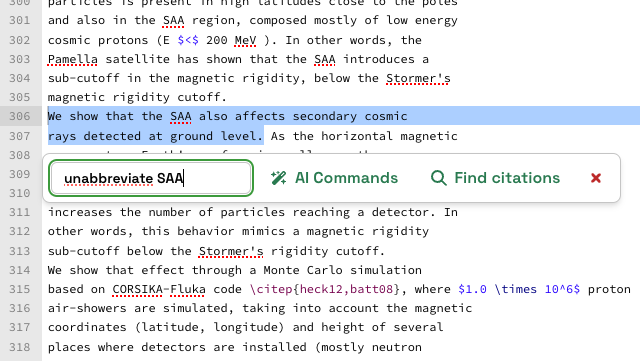
Enhance your writing with AI-powered suggestions. Get help with rephrasing, grammar corrections, and style improvements tailored to academic writing. Simply highlight text and use the Underleaf popup to receive intelligent editing suggestions, directly within your editor.
Find Citations
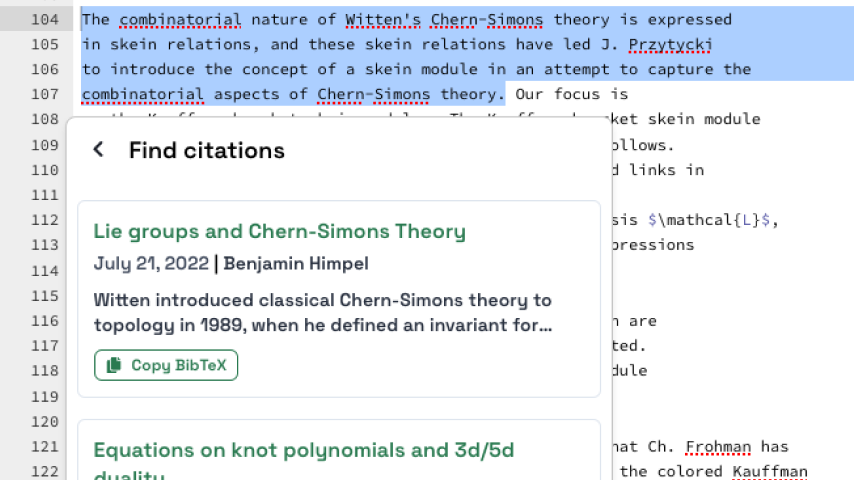
Underleaf searches a comprehensive database of academic papers to find relevant citations for your work. Simply describe the concept you're looking to cite, and Underleaf will suggest appropriate references, complete with properly formatted citation text.
Generate Math and Table Code
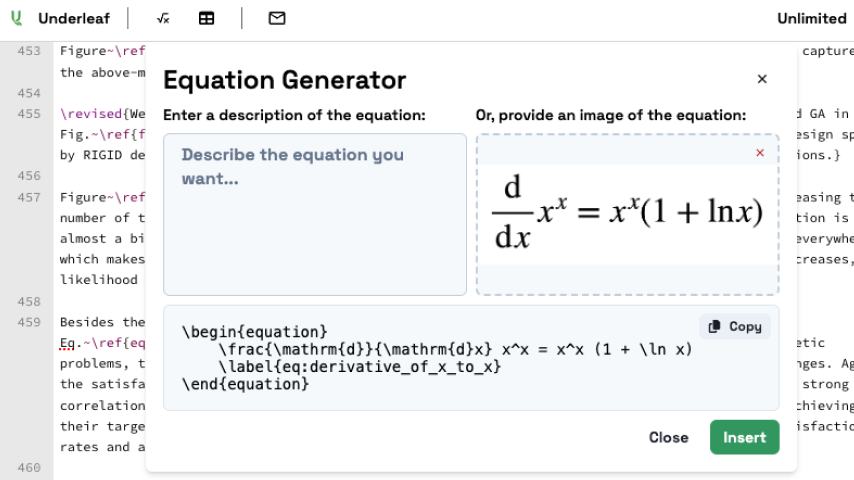
Effortlessly create complex LaTeX math equations and tables using Underleaf's Equation Generator. This powerful feature offers two convenient input methods:
Natural language input: Simply describe the equation or table structure you need in plain English.
Image upload: Drag and drop or paste an image of an existing equation or table.
Underleaf will instantly generate the corresponding LaTeX code, complete with proper formatting and labels. You can easily copy the generated code or insert it directly into your document, saving time and reducing errors in your technical writing.
Automatic Template Extraction from arXiv
Seamlessly extract and open LaTeX templates from arXiv papers directly in Overleaf® with just a single click. You can access this feature in two ways:
Underleaf Side Panel: When browsing an arXiv paper, the panel shows an "Open in Overleaf®" shortcut at the top.
arXiv Paper Page: Look for the "Open in Overleaf®" button in the "Access Paper" section of any arXiv abstract page.
With either method, Underleaf will automatically extract the LaTeX template from the arXiv paper and open it in a new Overleaf® project. This gives you an instant head start on your research paper, allowing you to focus on content rather than formatting.
Accounts & Plans
Sign in from the side panel's Settings with a one-time email code. It creates your Underleaf account on the spot, and the same email and password work on the web app.
The free plan includes 5 generations a day in the extension. On any paid plan, extension usage is currently unlimited (generate, snip, and edit as much as you need), and you also get elevated monthly credits on the web app for PDF → LaTeX, citations, and the full tool suite.
See plansSupport
If you need help with Underleaf, you can reach out to our support team via the chat bubble in the bottom right corner of the page or by emailing us at team@underleaf.ai.