Underleaf Logo
Underleaf
Blog
Log InTry Free

Learn Figures

Guides

  • How to make a graphical abstract
  • How to create a scientific figure
  • Export scientific figures without losing clarity
  • Add your scientific figure to LaTeX
  • Make diagrams that teach one idea at a time
  • Write a caption that completes the figure

The Figure Maker field guide

Export scientific figures without losing clarity

Choose the right format, calculate the image size you need and keep labels readable when a figure moves from the canvas into a document.

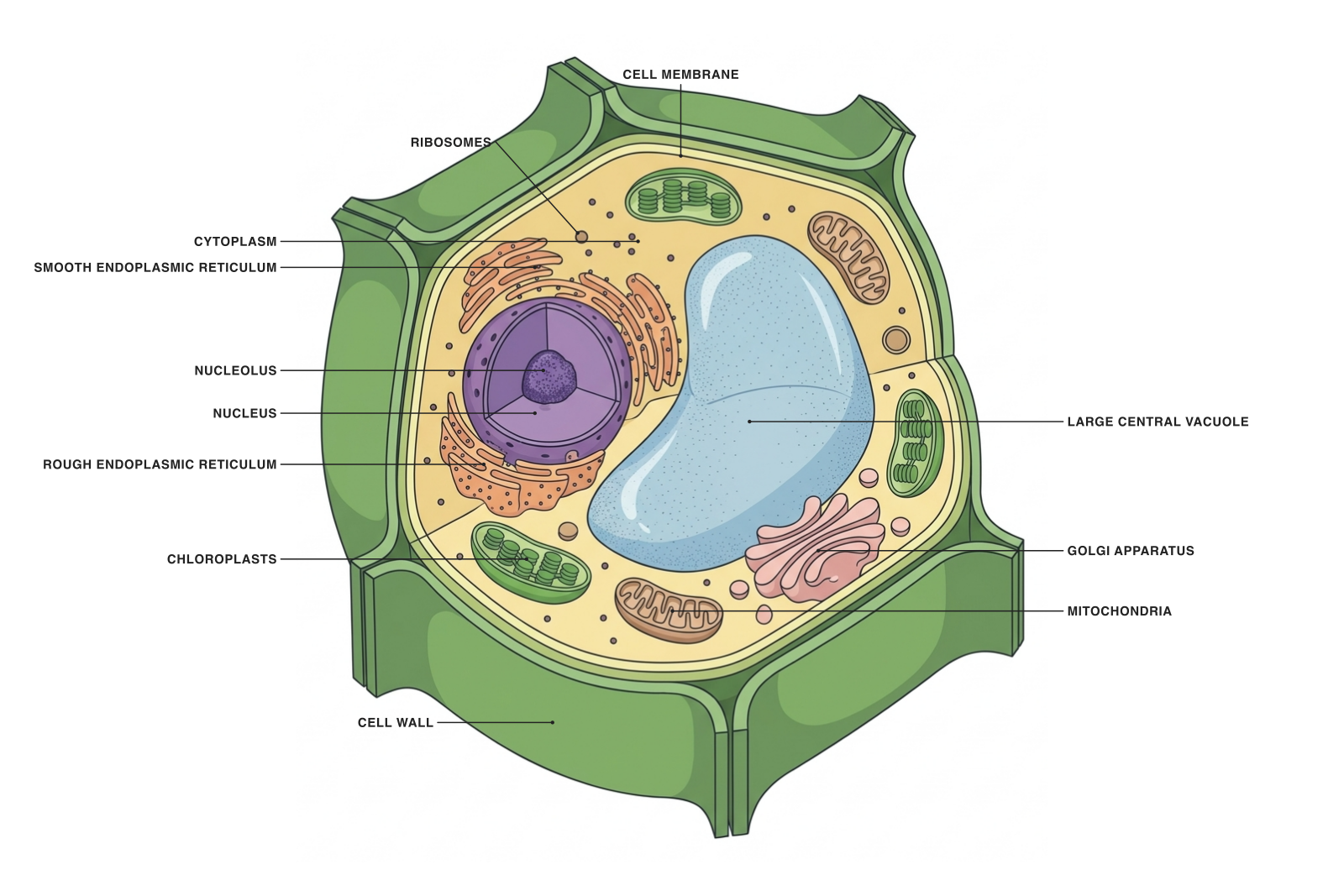
Plant cell illustration with labels positioned outside the biological structures
Download PNG

A labeled illustration exported at the size it will be shown: labels stay readable when the figure is placed in a column.

Customize this figure

Export is part of figure design. A drawing that looks clear on a large canvas can become unreadable when placed in a narrow column or reduced for a lecture slide. Choose the destination size before judging the final output.

File extension, image resolution and editability are different properties. A file named .svg may contain raster artwork. A large PNG may still have labels too small to read at the intended display size.

SVG and PNG solve different problems

SVG can store paths, shapes and text separately and scale those vector elements without pixelation. It can also embed a raster image; the embedded image retains its own pixel limits.

PNG stores a raster image. It is convenient for slides and many document workflows, but its exported text is part of the pixels rather than an independently editable text object. Keep the figure source if you expect to revise labels.

  • Use SVG for editable vector diagrams in compatible editors.
  • Use PNG for straightforward insertion into slides and documents.
  • Check the actual SVG contents before calling an illustration fully vector.

Calculate pixels from the intended print size

For a raster image, required pixels equal width in inches multiplied by the requested pixels per inch. A 3.5-inch-wide placement at 300 pixels per inch needs 1,050 pixels of width. A 7-inch placement at the same resolution needs 2,100 pixels.

Changing the resolution metadata does not create missing detail. Enlarging a small source image may produce a larger file while preserving the same underlying limitations. Use the source dimensions and the final placement together.

Required width in pixels = width in inches × pixels per inch
3.5 in × 300 ppi = 1,050 px
7.0 in × 300 ppi = 2,100 px

Test the labels at their final size

Place the export in the actual layout. Read every label without zooming beyond the viewing conditions you expect from the reader. Check leader lines, line weights, symbols and contrast as well as body text.

Keep labels consistent across related panels. If one panel is reduced much more than another, the final type sizes may no longer match even if they were identical in the source.

Use the destination’s requirements

A journal may specify file types, text handling, color space and minimum resolution for different image categories. Nature’s specifications, for example, require legible editable text and discuss minimum image resolution. Those requirements should not be treated as universal rules for every publication.

Check AI-image policies and publication rights separately. An accepted file type does not establish that the venue accepts the way its contents were produced.

Keep a small, useful source package

Keep the editable figure, the final export and its caption together. Use a clear filename and a short note describing what the figure represents and any changes that matter for a later revision.

For a figure assembled from data, retain the data and plotting code as appropriate. For an illustrative model, retain the relevant references and your correction notes. A coauthor should be able to find the version actually used in the manuscript.

A prompt to start from

Keep the structures in this plant-cell illustration. Improve the label layout for use at a small document width: use consistent type, avoid overlapping leader lines and preserve readable spacing. Do not alter the biological structures.
Use this prompt

Frequently asked questions

References and further reading

Illustrations are explanatory models. Colors, proportions and selected structures are simplified to support the topic.

Keep exploring

Try it free

Start with a figure. Make it yours.

Open a starter, adapt the labels, and create an illustration for your next lecture or research discussion.

Starter examples are free to open. AI generation and edits use credits.

Plant cell illustration with labels positioned outside the biological structures

On this page

For lectures, research discussions and your next scientific explanation.

Explore Figure Maker

The Figure Maker field guide

Export scientific figures without losing clarity

Choose the right format, calculate the image size you need and keep labels readable when a figure moves from the canvas into a document.

Plant cell illustration with labels positioned outside the biological structures
Download PNG

A labeled illustration exported at the size it will be shown: labels stay readable when the figure is placed in a column.

Export is part of figure design. A drawing that looks clear on a large canvas can become unreadable when placed in a narrow column or reduced for a lecture slide. Choose the destination size before judging the final output.

File extension, image resolution and editability are different properties. A file named .svg may contain raster artwork. A large PNG may still have labels too small to read at the intended display size.

SVG and PNG solve different problems

SVG can store paths, shapes and text separately and scale those vector elements without pixelation. It can also embed a raster image; the embedded image retains its own pixel limits.

PNG stores a raster image. It is convenient for slides and many document workflows, but its exported text is part of the pixels rather than an independently editable text object. Keep the figure source if you expect to revise labels.

  • Use SVG for editable vector diagrams in compatible editors.
  • Use PNG for straightforward insertion into slides and documents.
  • Check the actual SVG contents before calling an illustration fully vector.

Calculate pixels from the intended print size

For a raster image, required pixels equal width in inches multiplied by the requested pixels per inch. A 3.5-inch-wide placement at 300 pixels per inch needs 1,050 pixels of width. A 7-inch placement at the same resolution needs 2,100 pixels.

Changing the resolution metadata does not create missing detail. Enlarging a small source image may produce a larger file while preserving the same underlying limitations. Use the source dimensions and the final placement together.

Required width in pixels = width in inches × pixels per inch
3.5 in × 300 ppi = 1,050 px
7.0 in × 300 ppi = 2,100 px

Test the labels at their final size

Place the export in the actual layout. Read every label without zooming beyond the viewing conditions you expect from the reader. Check leader lines, line weights, symbols and contrast as well as body text.

Keep labels consistent across related panels. If one panel is reduced much more than another, the final type sizes may no longer match even if they were identical in the source.

Use the destination’s requirements

A journal may specify file types, text handling, color space and minimum resolution for different image categories. Nature’s specifications, for example, require legible editable text and discuss minimum image resolution. Those requirements should not be treated as universal rules for every publication.

Check AI-image policies and publication rights separately. An accepted file type does not establish that the venue accepts the way its contents were produced.

Keep a small, useful source package

Keep the editable figure, the final export and its caption together. Use a clear filename and a short note describing what the figure represents and any changes that matter for a later revision.

For a figure assembled from data, retain the data and plotting code as appropriate. For an illustrative model, retain the relevant references and your correction notes. A coauthor should be able to find the version actually used in the manuscript.

A prompt to start from

Keep the structures in this plant-cell illustration. Improve the label layout for use at a small document width: use consistent type, avoid overlapping leader lines and preserve readable spacing. Do not alter the biological structures.
Use this prompt

Frequently asked questions

References and further reading

Illustrations are explanatory models. Colors, proportions and selected structures are simplified to support the topic.

Keep exploring

Try it free

Start with a figure. Make it yours.

Open a starter, adapt the labels, and create an illustration for your next lecture or research discussion.

Starter examples are free to open. AI generation and edits use credits.

Plant cell illustration with labels positioned outside the biological structures
Underleaf Logo
Underleaf

Practical tools for academic writing, document conversion, and research workflows.

Go to appContact us

Company

PricingBlogTutorialsConference TemplatesConference Deadlines

Free Tools

Image to LaTeXExcel to LaTeXArXiv to LaTeXTikZ GeneratorLaTeX Table GeneratorCitation GeneratorThesis GeneratorChrome ExtensionAll Tools

Ask AI about Underleaf

Ask ChatGPTAsk ClaudeAsk Perplexity

© 2026 Underleaf. All rights reserved.